Using the Figaf Tool for a SAP PI/PO migration project
What the migration overview screen shows and what this video covers.
Key points
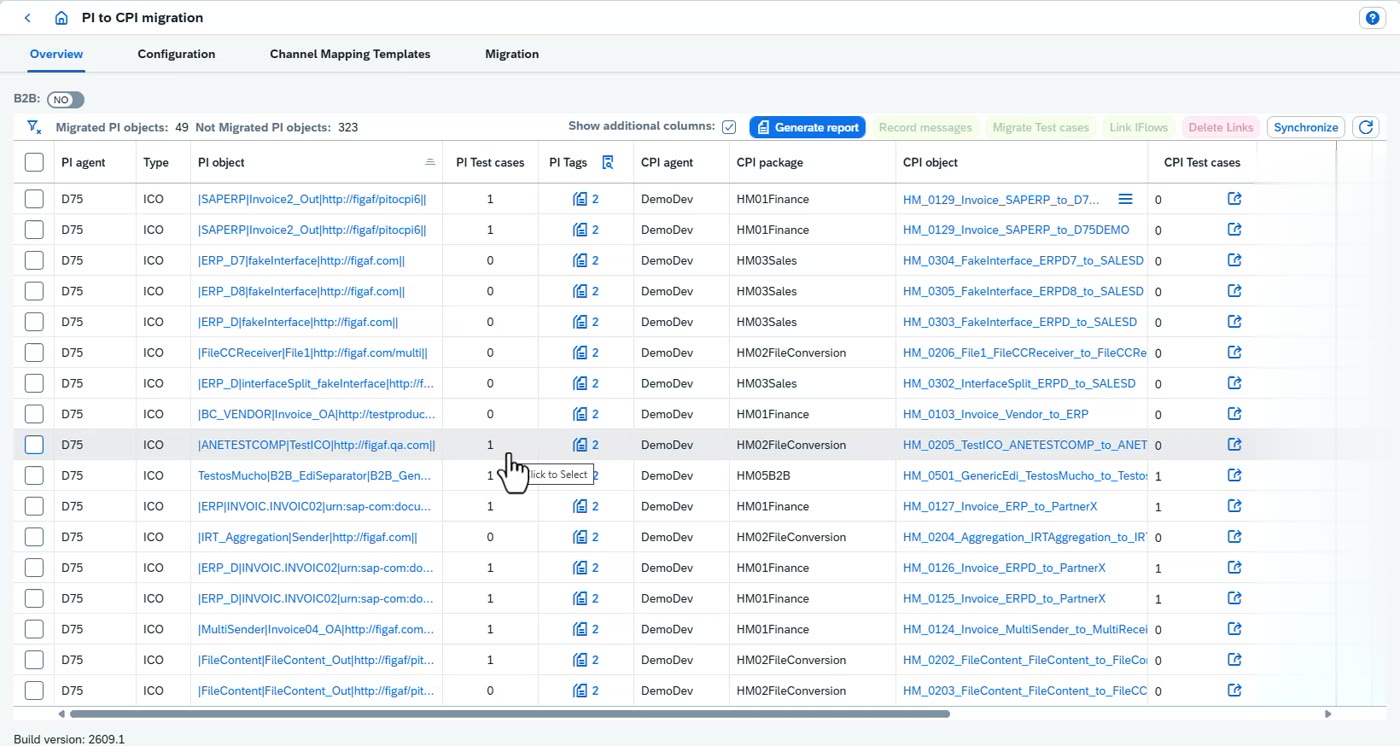
The migration overview screen shows how the migration is going: what has been migrated and which interfaces have test cases.
The video goes through configuring the migration, analyzing the landscape with a report and rules, and creating test data from messages processed on SAP PI/PO.
What is said in the video
In this video, we'll go through how you can use the Figaf Tool for migration project, what it is that it covers, and what are the capabilities we have for it. First, this is the migration overview screen. Here we can see how the migration is going, what we have migrated, and what we have test cases for, and everything around that.
Configuring the migration: PI systems, CPI systems, parameters and modules
Set up which systems the migration connects to and what is replaced on the way.
Steps
In the migration configuration, add the SAP PI systems and the SAP Cloud Integration (CPI) systems you want to connect to.
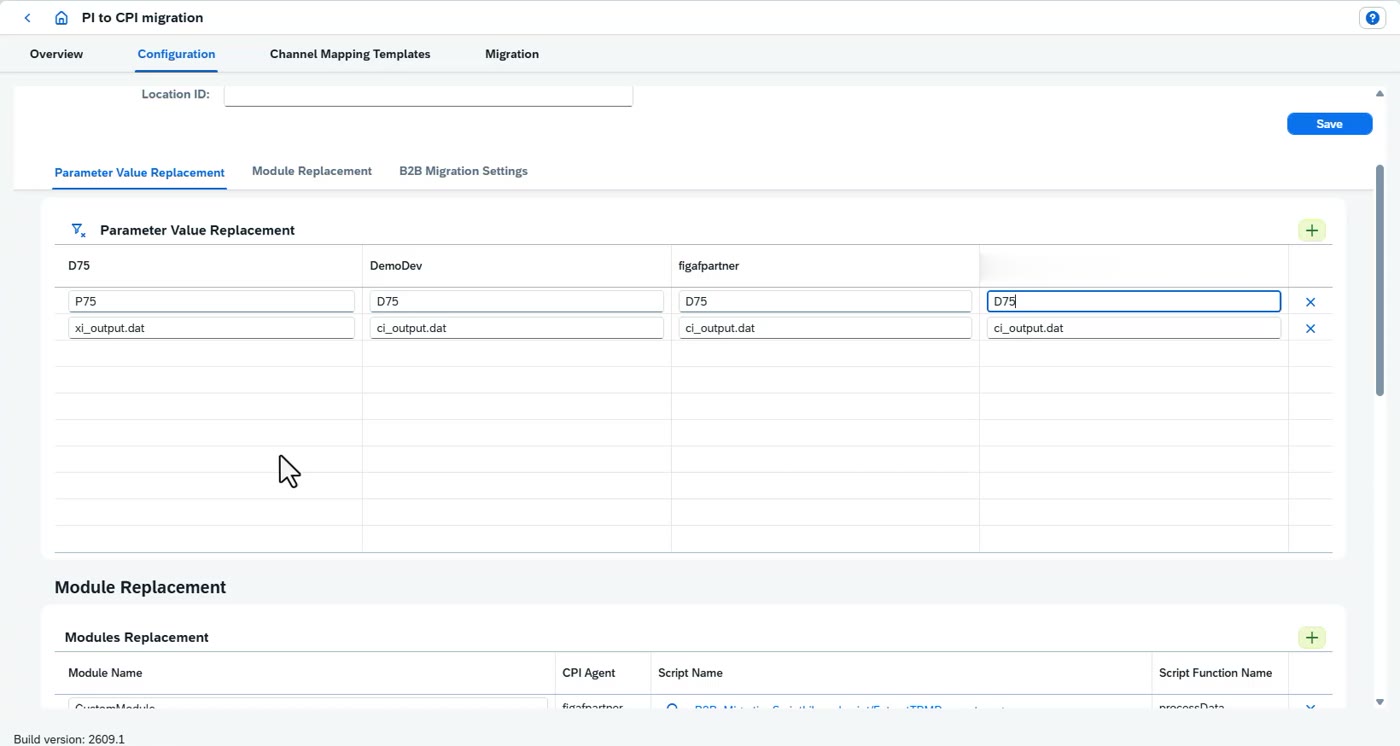
Add the parameters you want to replace. If a value on the development PI system differs from the target, for example a production host name, define the replacement so the migrated iFlow gets the right value. Several PI systems can share the same replacement.
Under configuration, map custom modules. For a custom module such as a demo module, select the Figaf partner script collection and the specific script that replaces it. This way you do not have to build every replacement module yourself.
Choose how B2B is handled: which B2B scenarios to migrate, whether to deploy the iFlow after the migration, and whether to activate agreements.
If you use the Cloud Connector, enter its location ID. It is added to the migration whenever the PI system is accessed through a Cloud Connector.
What is said in the video
So when we go and configure it, we set up what are the PI systems we want to connect to, what are the CPI systems we want to connect to, and here we can then add parameters that we want to replace. So if we have a parameter on our D70 system, we can replace that. For instance, if this was a production system, we could replace the prod to D75. and here, since I have multiple PI systems, they are all connected to the same thing. We can also go down here under the configuration and say if we have a custom module that's called a demo module, we can select on Figaf partner, what are the script collection we want to migrate this to, and what is the specific script for it. This enables us to ensure that we do not need to make all the new modules that have been replaced. And there's some B2B components here. What are the B2B scenarios we want? Do we want to deploy the iFlow after deployment? And how do we migrate, activate agreements also? If we're using Cloud Connector, we can insert it here. And then whenever we use Cloud Connector or location ID for accessing on the PI system, this would be added to our migration. So no changes added. Obviously, we need to change that.
Synchronizing the PI system
Fetch the content of the PI system, with two options that make a failing synchronization more reliable.
Steps
Open the synchronization of the PI system.
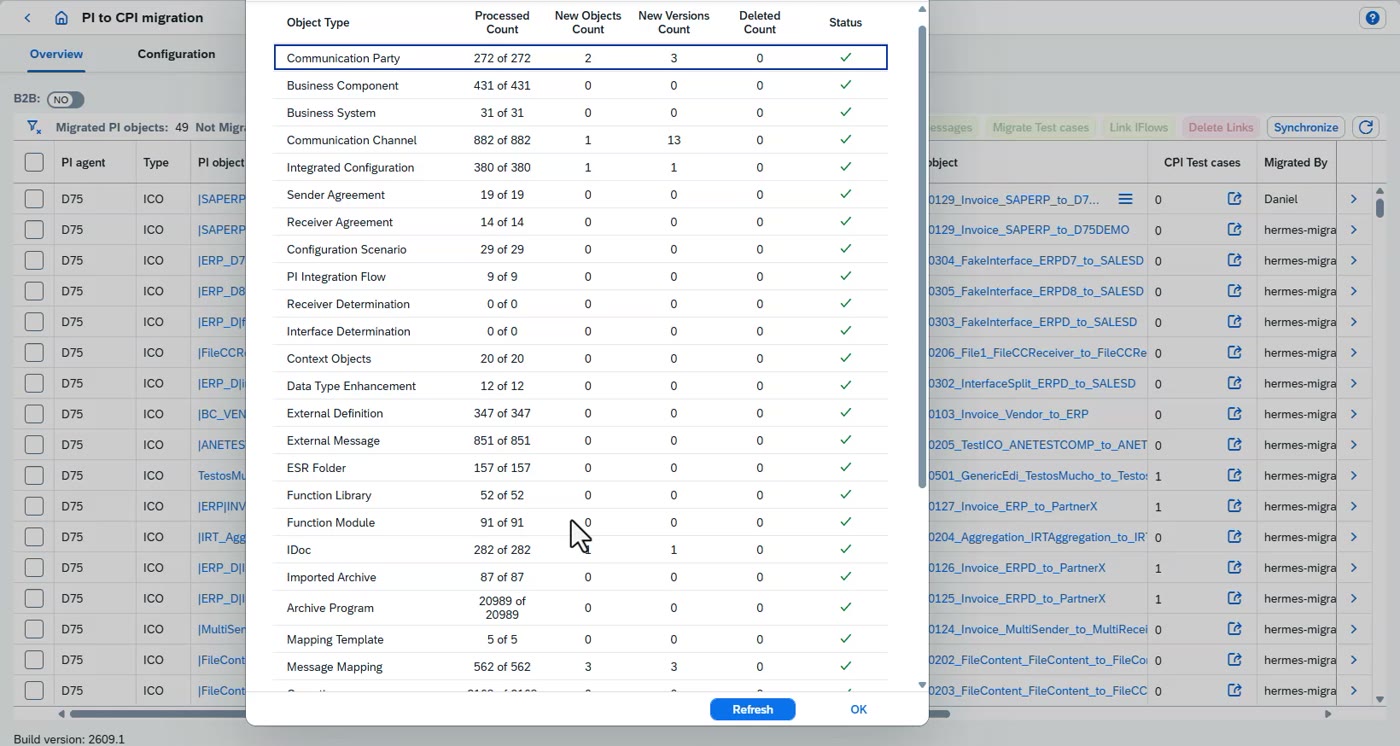
If the synchronization does not run through, tick the first two checkboxes and click Synchronize. Figaf then fetches all content and does a full build of the repository.
You can also synchronize the other connected PI systems from here.
Why the checkboxes
A synchronization of a large PI system on a machine with low memory can fail halfway. The next synchronization then does not build the repository correctly, which is why Figaf recommends the two checkboxes.
What is said in the video
Now we have set up the migration. To do a migration, we need to do synchronization. And for the PI system, we do see a lot of times that if it does not completely run and we have problems with it, we recommend that you check it with these two first checkboxes. checkboxes, press synchronize, then it will fetch all the content you have. It will do all the building and ensure that there is some builds. Sometimes we have seen that it does not work if you have low memory and do a synchronization on the last system. It fails in the middle of it, and then next synchronization does not build this correct rep. Therefore, you need to do the synchronization with these two properties. We can also do synchronization of the PI systems that we
The migration report: statistics per ICO, mapping and tag
Insight into what is running in the PI system and how much it is used.
Key points
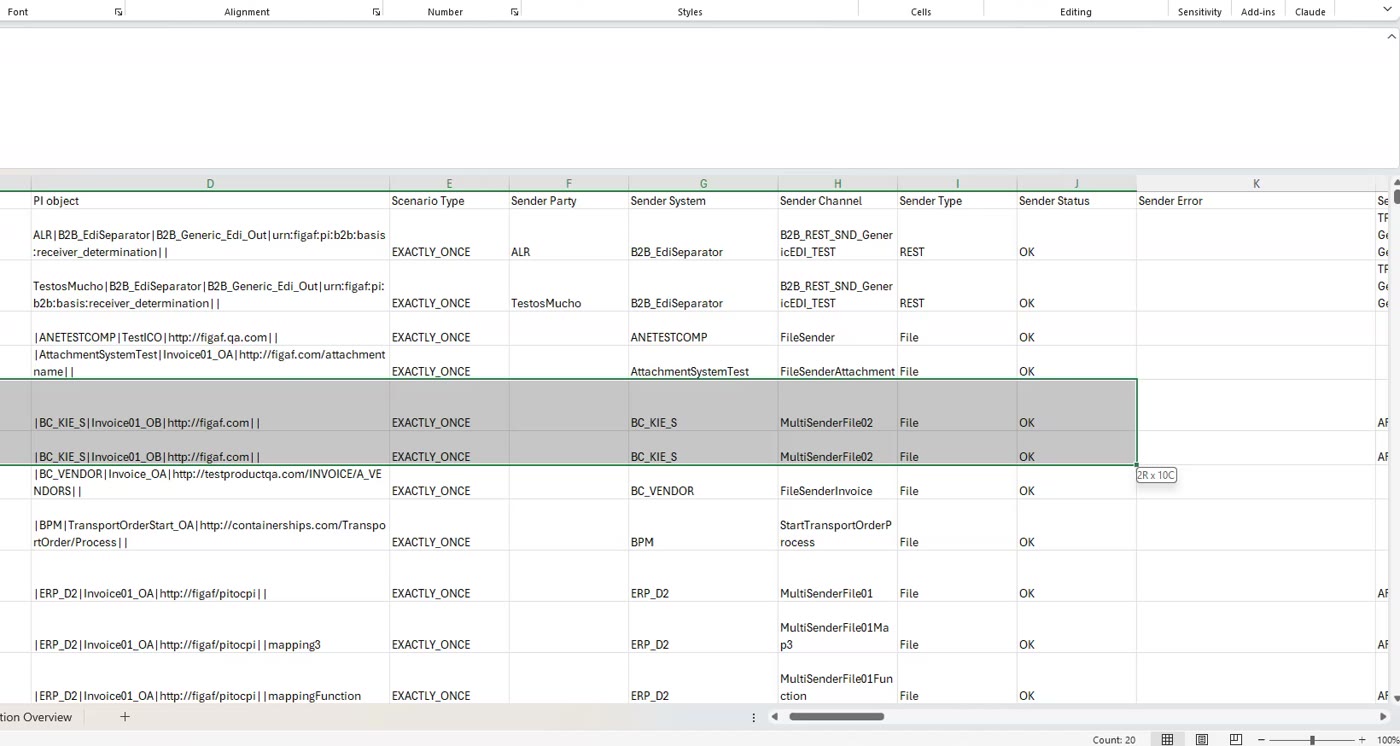
The report shows statistics for the current and the previous month: the ICOs, how many messages were processed, and the mappings, sender and receiver tags and attributes they involve.
An ICO that sends to two receivers shows two numbers.
You can see which modules and configurations are used, the sender tags, and whether an object is used in a BPMN process.
The report has a tab on the migration that shows how it is going, and an AI feature that helps explain the content.
What is said in the video
are connected to if we want to. Okay. So we now have a report. And here we can show statistics of the current month, last month. And in this report, we can see a lot of insight about what going on in our system. So we can see the ICO. We can see here a number. Sometimes there's two numbers on this. So this ICO here is sent to two different receivers. And we can then see that it's the different mappings. We can see some of the sender tags that is involved in this. We can see all of this. We can see names, attributes, receiver tags and the number of messages that's been processed on this in the last period, which is now the month. So this is really a useful report. It also has a tab on the migration where you can go and see how that is going. But here, use this, check it out. We do have also an AI that you can look into and see how this works, but this is all the details you need. And as you can see here, we have the modules that use the configurations and the
Rules that find problem objects with an XPath
Find the objects in the PI system that need attention before you migrate, with your own rules or the ones Figaf publishes.
Steps
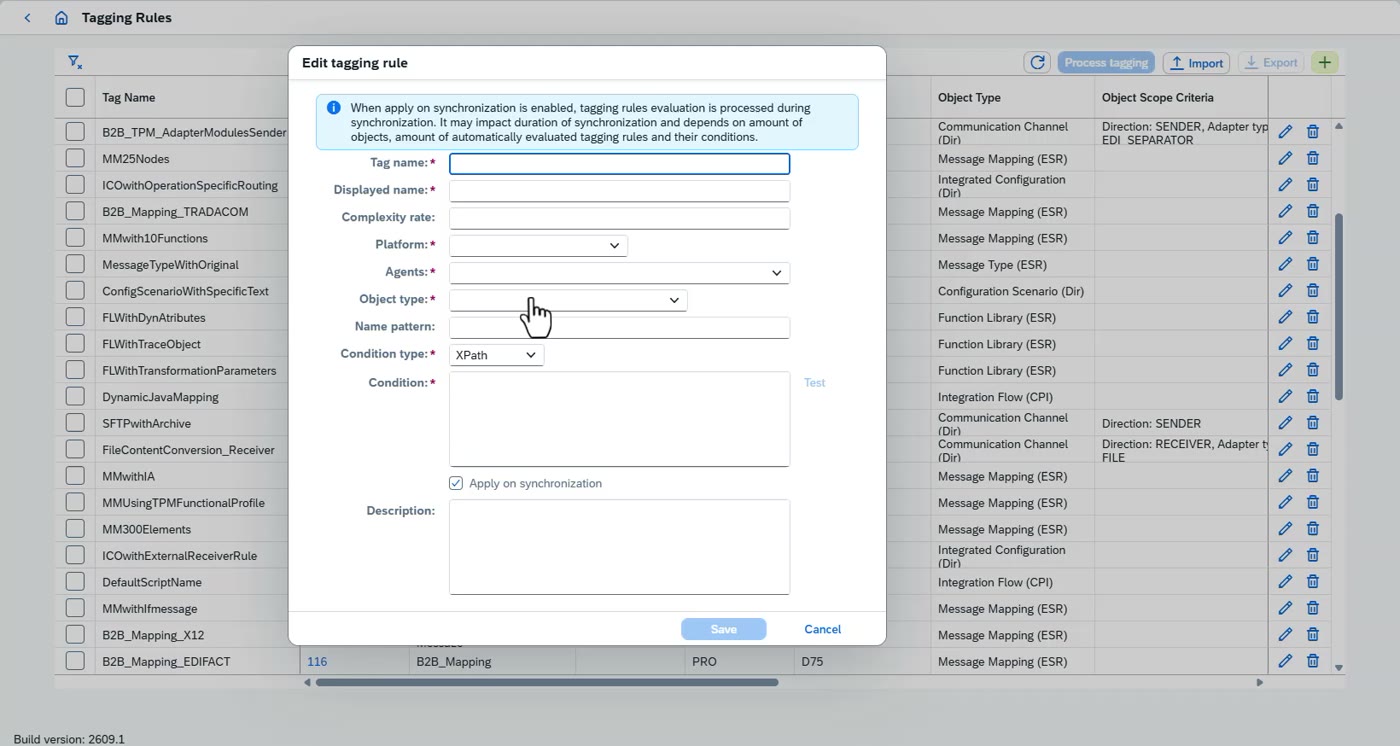
Create a rule: choose the agent, the platform (PI), the object type, for example a communication channel with a mail adapter, and the direction (sender or receiver, for example for the file adapter).
Write an XPath on that object. Test it to see which objects it finds. If it does not find what is relevant, adjust it.
Add a description of what the problem is, so people who see the finding know what to do.
Import the rule sets Figaf publishes on the website. They give you much more detail about your own PI system.
Why rules exist
The rules came from real projects. The first one was an ICO that used an SFTP server with archive, which caused problems in the migration. Findings were first built into the report, which did not scale, so they became configurable rules.
What is said in the video
sender tags. If it's used in a BPMN process, all of this is relevant. I talked about the tags here, And the tags is something we found out. And the problem was whenever we created, ran into a problem in our integration. So the first one we ran into was we have an ICO that needs to be migrated. And this is using an SFTP server with archive. And that was causing some problems at that time. So it's like, how do we create this? And the first was we created some rules in the report that showed this, but this was not really sustainable. So instead, we went up and created this rule set here. And the idea is you create an XPath on a specific object. What is the direction? And then we'll find these objects and you can then look into them. We can add complexity. What's the problem with these? Or you can create your own, once you find a problem, specify the agent, platform, PI, the object type, so it's a communication channel, it's a mail adapter, direction, sender, file, I don't need a name here. And then here we can find some objects. We can create an XPath that we can test. Does this find something useful? If it does, yes. If not, we should obviously make it so it finds what is relevant. And we have created a list of all these you can find on the website. Import those. Those give you much more detail about your current PI system.
Migration info: scenario details and the logging setup
Check how each scenario will be logged for recording, and what Figaf recommends.
Steps
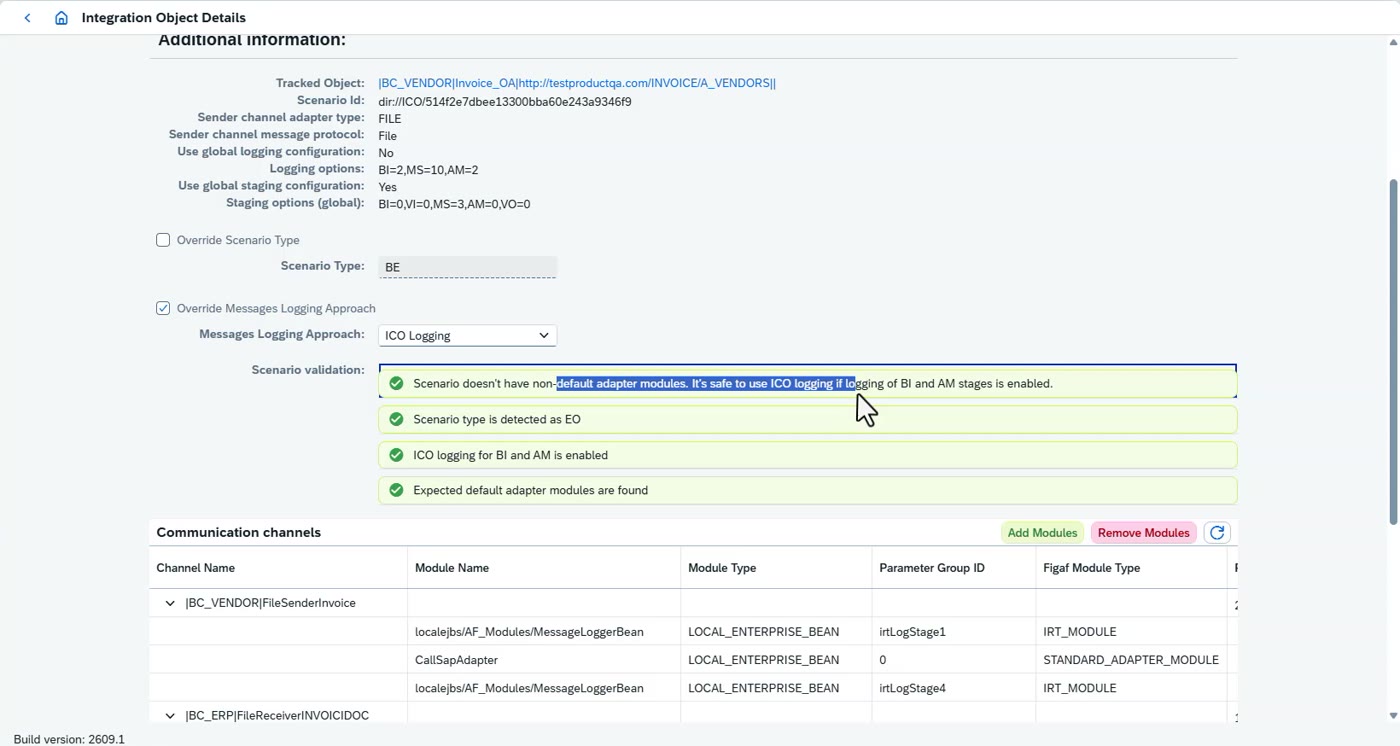
Click the migration info of a scenario. It shows what the scenario contains and its logging.
If Figaf thinks the scenario is an exactly-once interface and you know it is not, change it to best effort.
Choose the logging approach. ICO logging keeps the logging inside the PI system's ICO, so if it is enabled you see it here. With the other approach Figaf adds modules at the start and end of the processing chain, which you can configure.
Read the recommendation. It is based on the global and the local configuration and tells you what could be a problem, for example that you need to switch to ICO logging.
The four stages
There are four stages: the message received, the message before it is sent out, the response that comes back, and the response sent back to the client.
Not every adapter supports the third stage module and it fails if added, so consider what you need. If you do not need the response, skip the third stage module.
What is said in the video
So now we have analyzed the landscape, we have an overview of our migration process. The next thing we need to do is we need to look for what we have in content. So we want to create test data first, and we can go in here. When we click here, we get the overview of the migration info. Here we can see, okay, this is a scenario, it contains these details, there's logging inside here um and we can see so this we think is an io object if we know that this is incorrect we can change it to best effort um and we have two logging approach ico logging which contains logging inside of the the pi systems ico so if you have enabled the logging here you would be be able to see it here. And here it comes with recommendation based on the global configuration and the local configuration. Is there something that based on this scenario that could be a potential problem? So here it says that we need ICO or change it to ICO logging. When we do ICO logging, Figaf would add modules to it. You can go and configure that. It would add module in the processing chain in the beginning and the end of the processing chain um one of the things also to consider is if we add this we can set third stage module so for some scenarios you cannot add the third stage module uh the the the three four steps is the first is when we receive the message um the second is before we send it out third stage is the response that we get and the fourth date is the response we send back to the client um there is some adapters that do not support this and if you do that they will fail and create problems um so you need to consider what to use normally if you do not need the response just skip this to third stage module and then it will be
Recording messages for an ICO
Create a recording that finds messages covering the scenario and turns them into test data.
Steps
Find the ICO and click Record messages. This creates an expectation of the messages you want, for example named 'demo training video'.
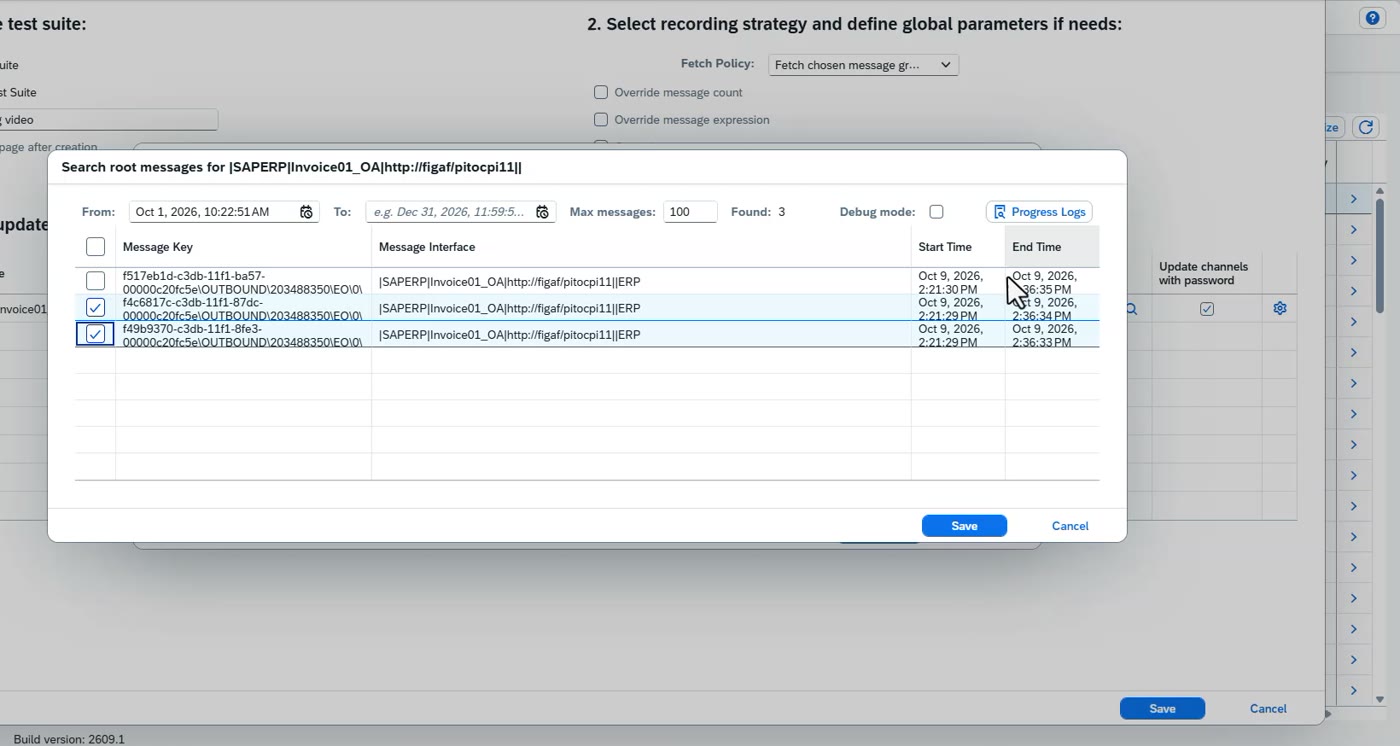
Choose how to find messages: look up historic messages, for instance from the last hour, or fetch future messages. Check the warnings and verifications first. If it reports problems, go back to the overview and fix them, for example the logging settings.
If you already have messages in the PI system, add their message IDs and they are added to the test suite.
To cover different cases, add filters. For documents such as invoices and credit memos, put an XPath to the document type so Figaf finds both. Messages of a type it does not know are not found and you are asked whether that is right. The same works with partners and with hard-coded values.
The default is three messages. Adjust the number to what you need.
Use the processing log if messages are not found. It shows why.
What is said in the video
able to add it. Good. To create a test case, we will go in and we will find an ICO. I have an ICO here and we have here an option to go in and say record messages. When we do that, when we record a message, we go in and create an expectation that we can find a number of messages that covers this scenario. So we'll call it demo training video and here we have the option to add historic messages we can look up the last hour that's been processed we can fetch future messages so this is relevant if you check the warnings and verifications here and it says hey there's actually some problems you would need to go back to the overview check what's going on fix this change the logging setting do some of these are the things that we need um and then we can fetch these future messages we can see here is there historic messages that we can use so right now we did not add anything here let's see if we have some older ones let's try these two um and also here if you have it gives you some deep detailed information and processing log that's also relevant to understand how does this work why didn't it find the relevant messages and if you have some messages you can also just add the root id here and then that it will be added to the test suite so normally you would have the test suite that covers multiple different scenarios and you would have some that covers a debit or credit and you want to have the document type then you put in a next path to to the document type and then it will do find the document you could also add the seller parties or some of the things is also you can use this for hard-coded value that's relevant when you're recording this and this could be if you you have found a number of messages in your pi system you want to use those then you can also add them here we have also in partner and for if we for instance say we have message partners like invoices and credit memos we could go in and add a filter on the document type based on so ENV and credit then it will find find it only in these two groups if there is something else that we do not know it will not find those and it will open it check is this correct or not and if not it will ignore it the same with partners also we normally specify three messages as default but obviously you can adjust adjust this based on what you need.
When messages are not found: record future messages
Handle a recording where the payloads could not be loaded.
Steps
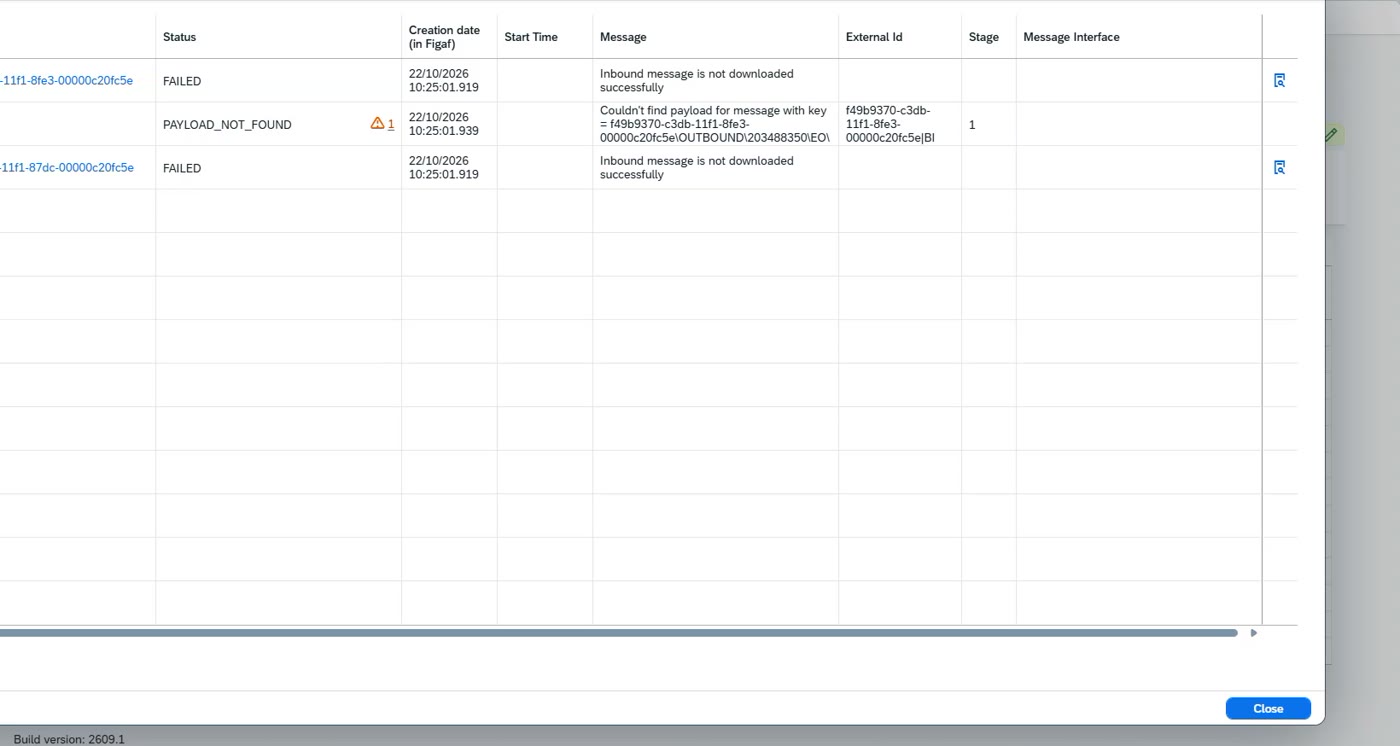
Check the processing log. If it says the inbound payload was not loaded, the messages have probably failed or are too old.
Copy the recording, choose Fetch future messages and start the recording.
Wait until someone sends messages through the interface. That can be the next day, or you can ask the people who run the system when the next message is processed.
Remove recording jobs that are no longer relevant.
What is said in the video
So what happens now is it would look into the system. Do we have messages that's been processed here? What's going on? Some payloads have not been found. Let's see here. We got a processing log. It says here inbound payload was not loaded. And that's probably because, and we can also see it here, that they failed. Inbound was not found. So probably because the message was old. So what I would normally do is I would then go and say, okay, yes, I want to create a new recording here. So I'll copy it. I will go, say, fetch future messages. I will start the recording. And then I will wait till someone can send in messages on this interface. so we will have someone to process the message either we wait until the next day or we just say okay go to to the to some guys and ask when when is the next message is being processed obviously depending on the system we should also remove all these recording jobs that are no longer relevant that we would not see so recording job is this expectations that we can fix some messages that's relevant for this.
Pulling the messages and setting the order expression
Look at what was recorded and make Figaf match inbound and outbound messages.
Steps
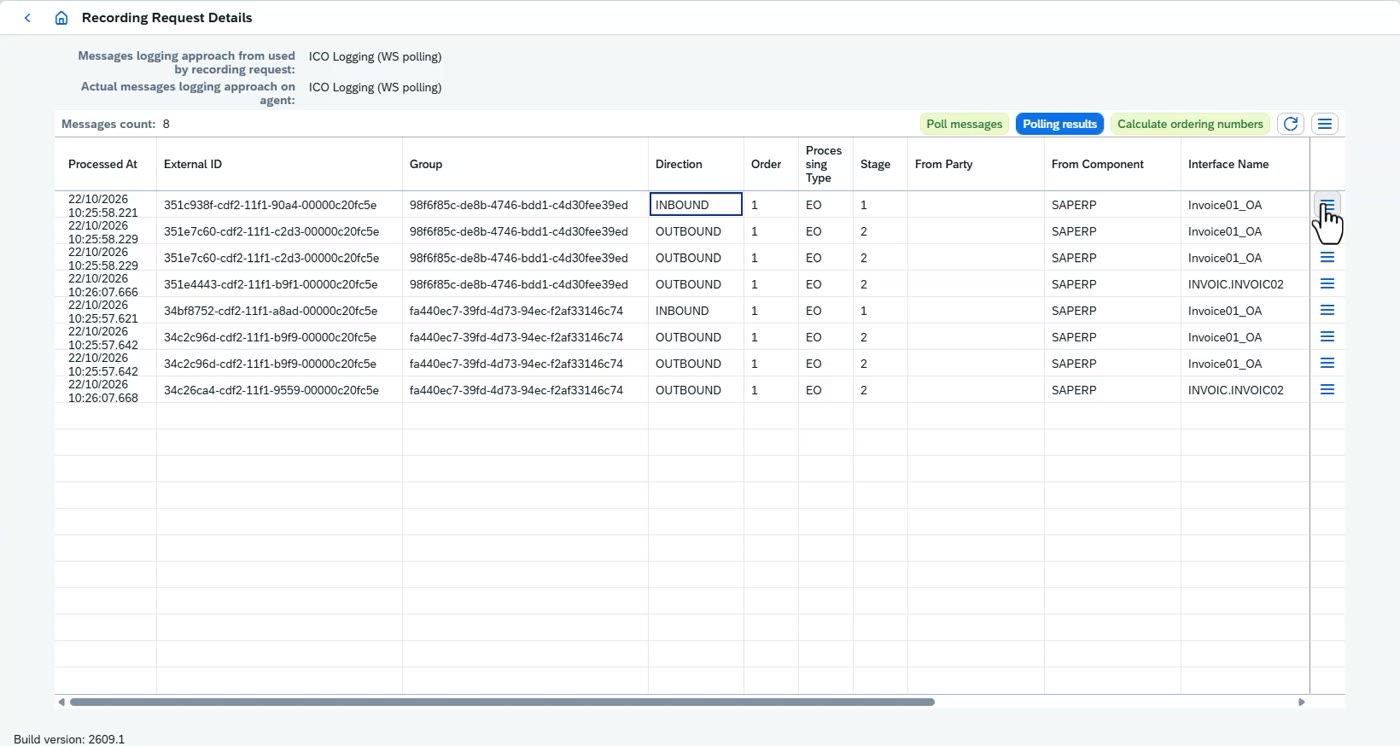
Click to pull the messages. In the video two inbound and six outbound messages came back for the recording.
If one document is split into several outbound messages, for example an invoice sent out per line item, add an order expression that identifies the line item, such as the ID.
Set the order expression in both the recording configuration and the testing configuration. In most cases they are the same.
Open the details of a message to see the inbound payload and the line items. Choose Calculate order, view the result, and if you change the expression, calculate again.
Good to know
At this point it is still a recording. It is not yet a test case.
What is said in the video
We create a test case here. We cannot do that because we have not pulled it. So we need to pull. I've run some messages through. Let's see. It processed some messages, and now we get the inbound, and we get multiple different outbound messages that's been processed here. So we got two inbound and six outbound. One thing that I've added here is I've added an order ID here. and this is if you have documents with multiple different content inside so let's say you have an invoice and you want to send it out as line item levels then you want to put in an order expression here that says the line item level that we have for this specific case so the id stuff like that and we can see here we have two settings for this we have recording configuration and we have testing configuration. The order expressions should in most cases be the same in both the recording and the testing expression. We can see the messages that we fetched. Open here the details and here we can see that we have the inbound message and we can see here there's, if I scroll out, we can see that there's line items level and we can go in here and assess the order. If we say calculate order response, it fetched these payloads. And if we view this, we can see here it is using new ID or the ID here as 12. So that's how it calculates it. If you change the order number, you just need to go here, calculate the order number, and we'll fit the new details. We can see a test case consistent with an inbound message and a number of outbound messages. So it is still a recording. It's not created as a test case to create it.
Creating the test case: regression or baseline
Turn the recording into a test case and pick the type.
Steps
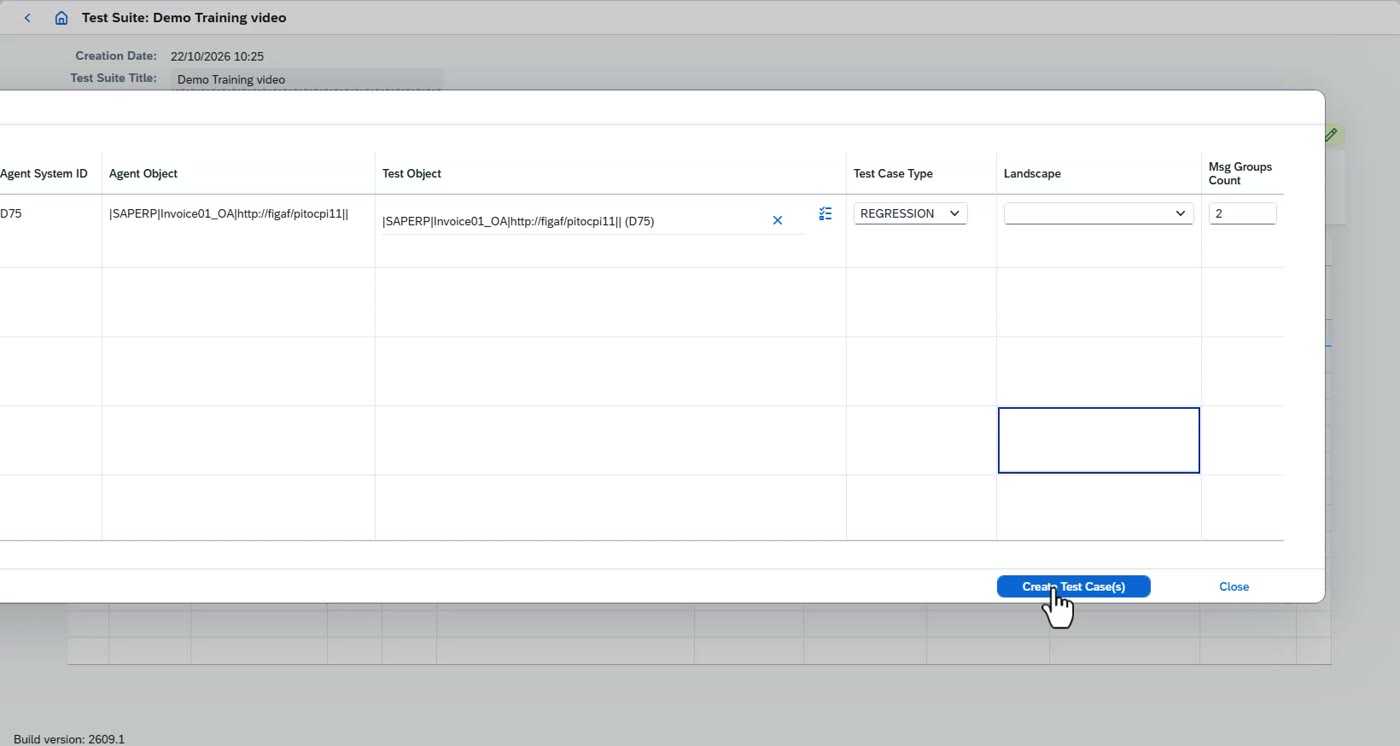
Create the test case from the recording. It shows everywhere it can run, which usually does not matter.
Choose regression for the standard way of testing in Figaf: the messages recorded from the PI system are the expected result.
Choose baseline if you have a test script in a tool such as Tricentis, or other scripts that create, for example, a purchase order in a structured way, and you expect the output to look like a given content.
Go back to the migration overview. The scenario now has one more test case.
A word of caution
Fixing test cases can be a challenge, because many steps can go wrong.
What is said in the video
We create it as a test case. we have, we can see all the different places it can run. It's not really relevant. And we have two test cases. One is regression. Regression is that the FigAuth tool is responsible for sentence methods. This is the standard way we recommend that you do testing on. We also have baseline, and baseline is if you have a test script in a tool like Tricentis or other scripts that can create purchase order in a structured way you can use the baseline and say okay yes we expect the purchase order that looks like this and then you will see the content there um and now we have created a test case so if we go back to our migration overview we can see that we now have one more test case that is relevant for this scenario and obviously fixing these test cases can sometimes be challenging. There's a lot of steps that can go wrong that...